

If you use my Plex server from a TV outside my home, the Remote Quality setting controls how much video data Plex tries to stream. When it is set too high for the available connection, playback can buffer, reduce quality, or fail to start altogether.
This guide walks through signing in to Plex on a TV and setting the quality used for remote streaming. The menus can look slightly different between TV platforms, but the same basic options are available in the Plex app.
Sign in to Plex on your TV
Start by opening the Plex app on your TV or streaming device. On the welcome screen, choose Sign In.

Plex will show a short code and ask you to link the TV to your Plex account. You can complete the process from a phone, tablet, or computer instead of typing your account password with a remote.
Link the TV to your account
On another device, open plex.tv/link and sign in if prompted. Enter the code shown on the TV. Some Plex versions show the linking instructions with a QR code as well. You can scan it with your phone, or open the link manually and enter the displayed code.
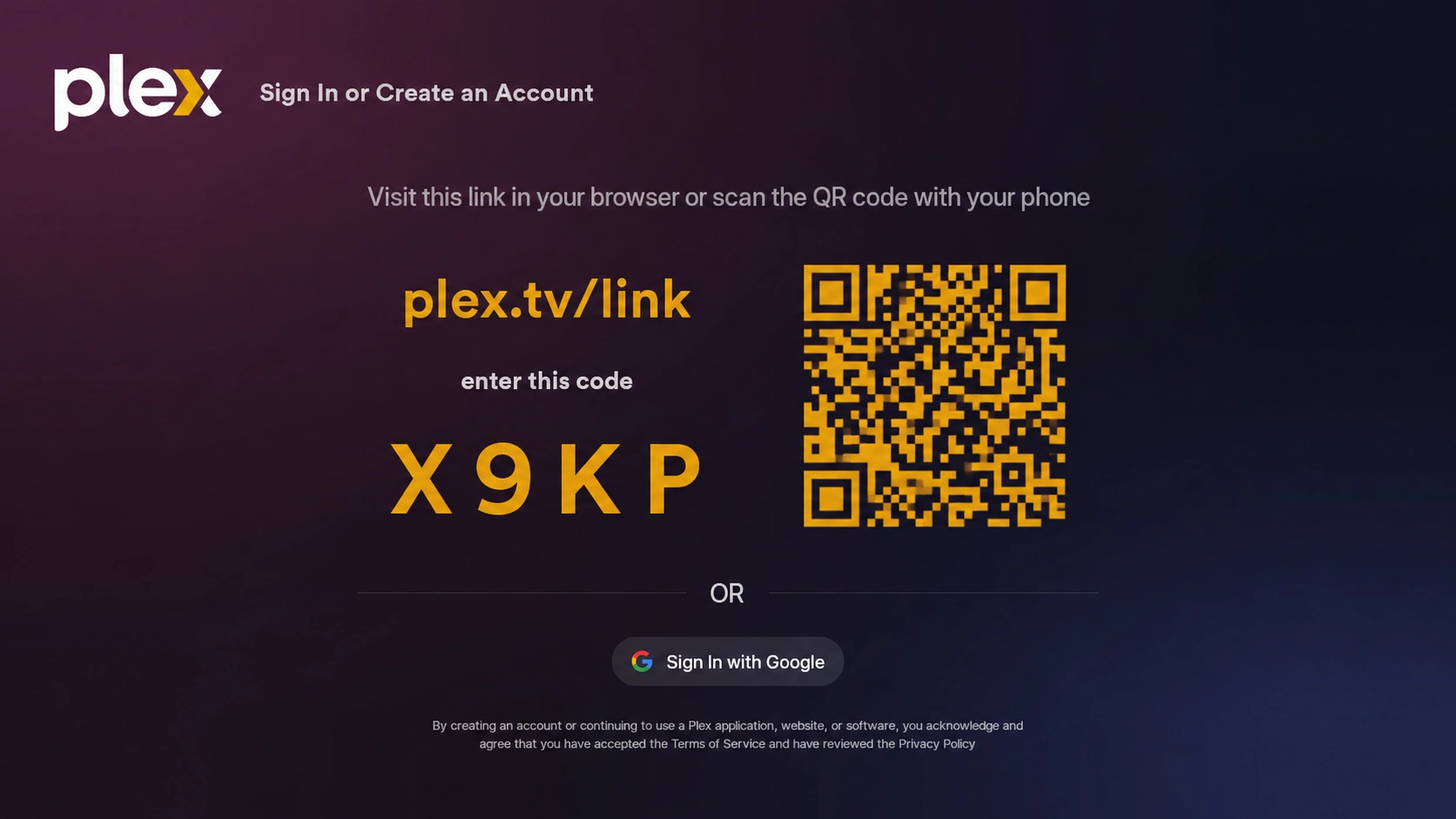
After the code is accepted, return to the TV. Plex should load the home screen and show the libraries available to your account.
Open the Plex settings
From the Plex home screen, open the navigation menu and select Settings. Depending on the device, the settings option may appear as a gear icon or near the bottom of the sidebar.
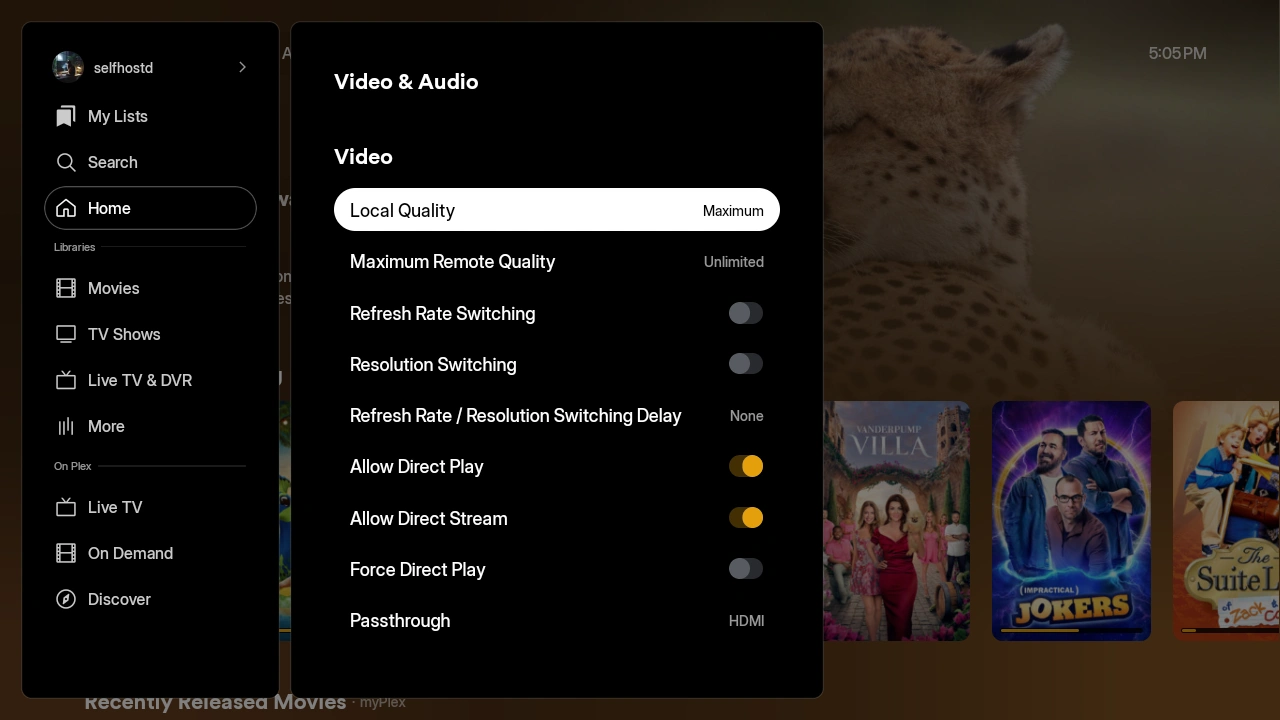
Once the settings page is open, choose Video. This is where Plex keeps the playback and streaming quality controls.
Change Remote Quality
Inside the Video settings, find Remote Quality. This is the quality Plex uses when streaming from a Plex Media Server over the internet.
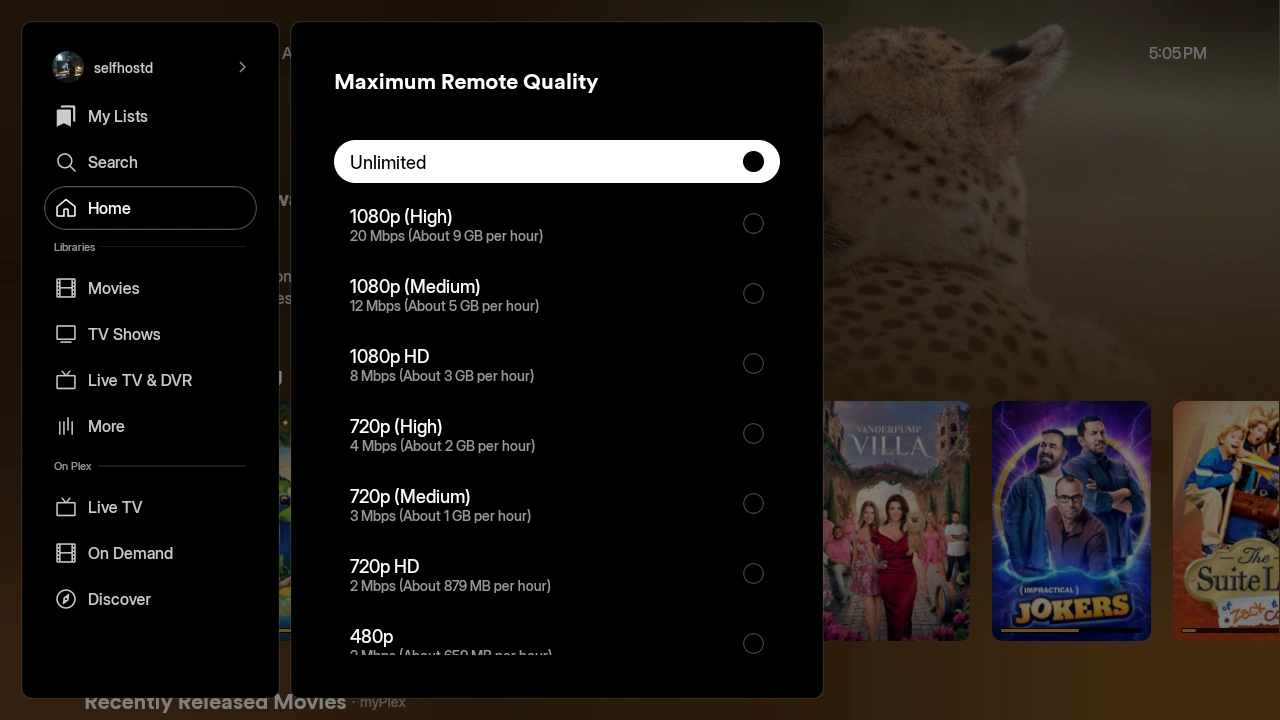
Choose a quality that matches the connection where you are watching:
- Original preserves the source quality but needs the most bandwidth.
- 1080p is a good choice for a reliable fast connection.
- 720p can be more dependable on slower or unstable connections.
- Auto lets Plex choose based on the connection and device.
As a starting point, try 1080p if you are watching on a modern TV and have a stable internet connection. If playback buffers, lower the setting. If the stream is consistently smooth and you want the best picture, try increasing it.
Check Direct Play and Direct Stream
The same Video settings page includes Direct Play and Allow Direct Stream.
When Direct Play is available, Plex sends the original file without converting it. Direct Stream can adjust the container without fully converting the video. Both can reduce the work required by the Plex server, but the TV still needs to support the video, audio, and subtitle formats.
Leaving these options on Auto is usually the best choice. If a particular file will not play, the server may need to transcode it instead.
Test it
Start a movie or episode and watch for a minute or two. The stream should start normally and remain stable without repeated buffering.
If playback still struggles, try these adjustments:
- Lower Remote Quality one step.
- Use a wired connection or move closer to the Wi-Fi access point.
- Pause other downloads or streams on the same connection.
- Check whether the Plex server has enough upload bandwidth.
- Try another title to determine whether the problem affects one file or everything.
TL;DR
To change Plex remote streaming quality on a TV:
- Open Plex and select Sign In.
- Link the TV at plex.tv/link.
- Open Settings.
- Select Video.
- Change Remote Quality.
- Test playback and lower the quality if the stream buffers.
The best setting is the highest quality that plays reliably on the connection you are actually using. A smooth 720p stream is more useful than a 4K stream that stops every few minutes.