
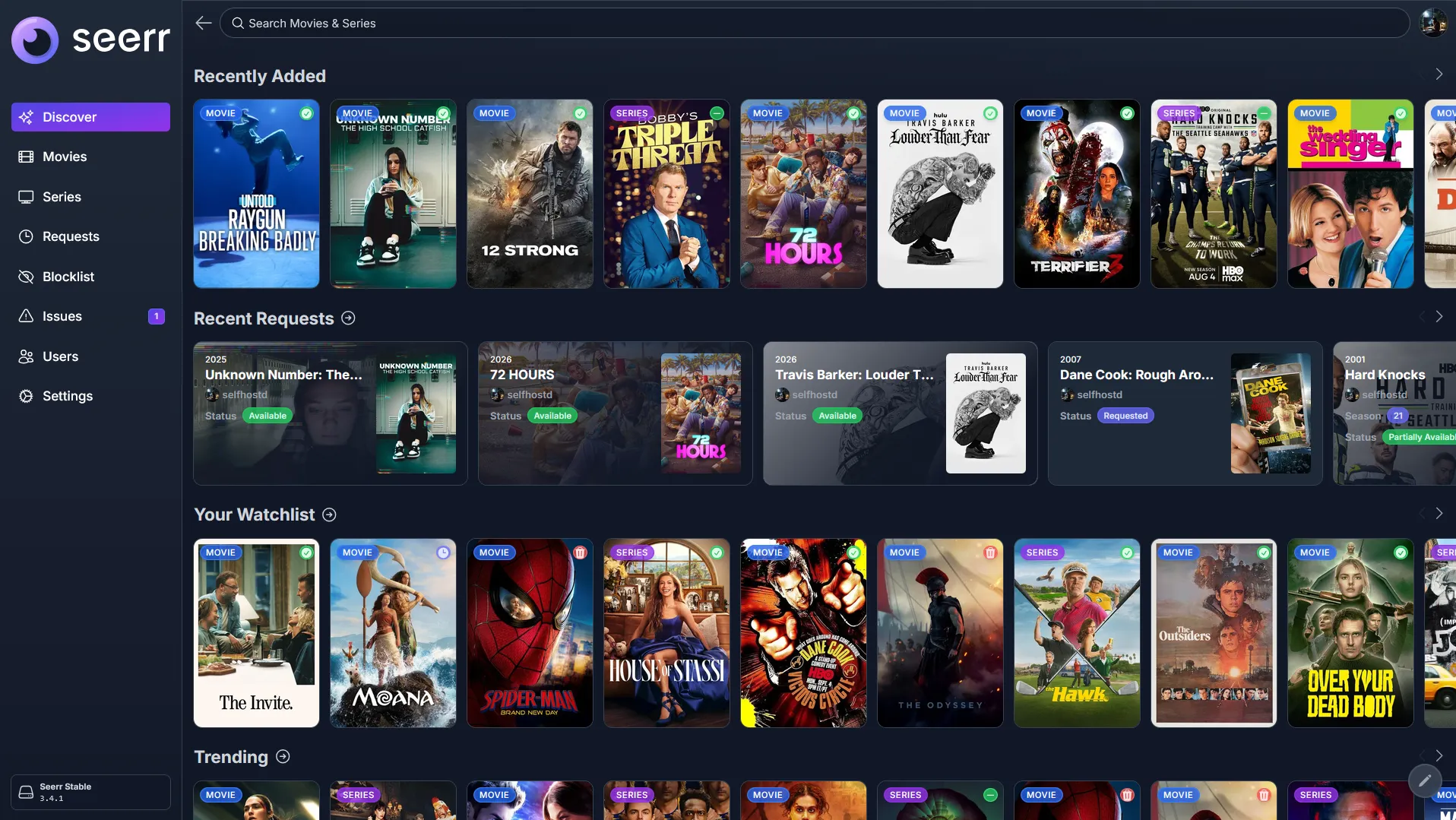
If you use my Plex server, Seerr is the easiest way to request movies and TV shows, check the status of your requests, and report issues with media that is already available.
This guide covers what Seerr is, how to sign in, how to request something, and how to report problems when something is not working correctly.
Seerr is the request system for my Plex server. Instead of texting or messaging me every time you want something added, you can search for it, request it, and track the status all in one place.
What is Seerr?
Seerr is a simple website that connects with Plex and lets users request movies and TV shows.
You can use Seerr to:
- Search for movies and shows
- Request new movies
- Request TV shows by season
- See whether a request is pending, approved, processing, or available
- Report problems with media that is already on Plex
Think of it as a request form and status tracker for Plex.
How to access Seerr
Open Seerr at request.alexpipp.com.
Seerr works in a regular web browser, so you can use it from a phone, tablet, laptop, or desktop computer.
How to log in
When you open Seerr, you should see a sign-in page. In most cases, you will log in using your Plex account.
- Open the Seerr website.
- Select the option to sign in with Plex.
- Enter your Plex email and password if prompted.
- Allow access if Plex asks for permission.
- After logging in, you should be taken to the Seerr home page.
If you cannot log in, make sure you are using the same Plex account that has access to my Plex server.
Find movies and shows
Once you are logged in, you can search for movies or TV shows using the search bar.
You can search by:
- Movie title
- Show title
- Actor or actress
- Collection or franchise name
For example, you could search for:
The Dark Knight
Breaking Bad
Harry Potter
Tom Hanks
After searching, select the correct result to open its details page.
Request a movie
Requesting a movie is simple:
- Search for the movie you want.
- Select the movie from the search results.
- Select Request.
- Wait for the request to be approved and processed.
Some requests may be approved automatically, while others may need to be reviewed first. Once the movie is available, it should appear in Plex.
Request a TV show
TV shows work a little differently because they have seasons:
- Search for the show you want.
- Select the show from the search results.
- Choose which season or seasons you want.
- Select Request.
Please only request the seasons you actually plan to watch. This helps keep storage and downloads under control.
Understand request statuses
After you request something, Seerr may show a status. These are the common statuses:
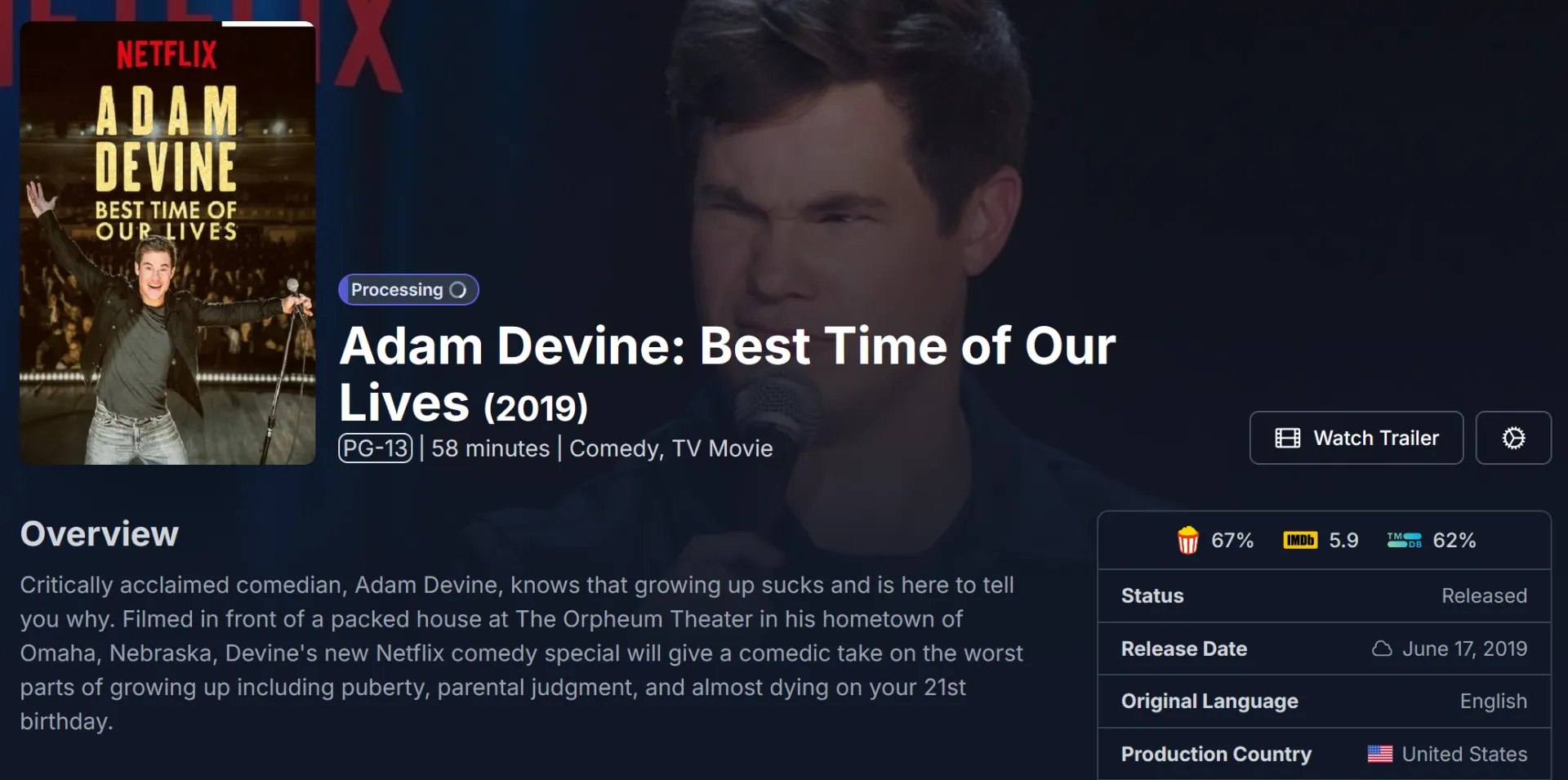
Pending
Your request was submitted, but it has not been approved yet.
Approved
Your request was approved and is waiting to be processed.
Processing
The movie or show is being searched for, downloaded, imported, or prepared for Plex.
Available
The movie or show is now available in Plex.
Partially available
Some episodes or seasons are available, but not everything is there yet. This is common for TV shows when only certain seasons or episodes have been added so far.
When will my request show up in Plex?
Some requests may appear quickly, while others can take longer. Timing depends on several things:
- Whether the movie or show is available
- The quality of the available files
- The size of the download
- Whether Plex has finished scanning it
- Whether there are any issues with the file
Please do not submit the same request multiple times. If you already requested something, check its status in Seerr instead.
Report an issue with media
If something is already in Plex but there is a problem with it, report the issue through Seerr. This is the best way to let me know that something needs to be fixed.
Common reasons to report an issue
Report an issue if:
- The movie or episode will not play
- The wrong movie or episode is showing
- Audio is missing or out of sync
- Subtitles are missing, wrong, or out of sync
- The video quality is bad
- The movie or episode stops partway through
- A TV show is missing episodes
- A movie or show is labeled incorrectly
- The language is wrong
- Plex says the file is unavailable
Submit an issue report
- Open Seerr.
- Search for the movie or show.
- Open the title’s details page.
- Look for the option to report an issue.
- Choose the issue type that best matches the problem.
- Add a short note explaining what happened.
- Submit the report.
Please include as much helpful detail as you can. Instead of writing:
It does not work.A better report would be:
The movie starts playing, but the audio is about 5 seconds behind the video.Or:
Season 2, episode 4 plays the wrong episode.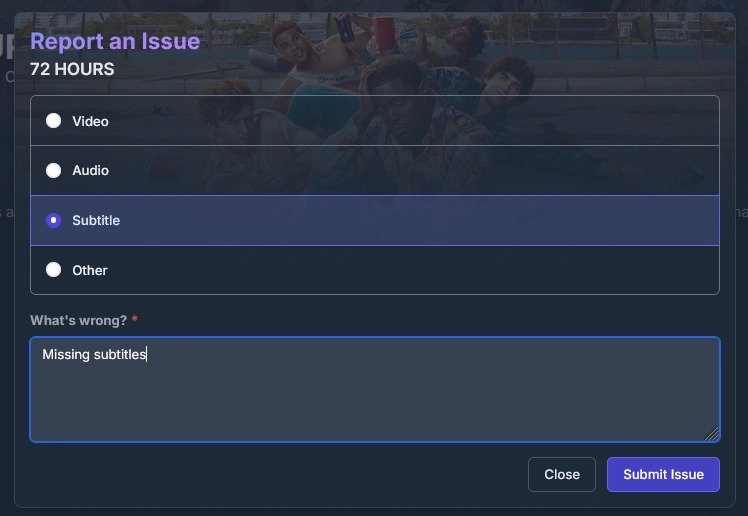
What to include in an issue report
Include details such as:
- The season and episode number, if it is a TV show
- The device you were using
- What happened
- Whether the problem happens every time
- Any error message you saw
Here is a simple format you can use:
Title:
Season and episode:
Device:
Problem:
Does it happen every time:
Any error message:
Example:
Title: Example Show
Season and episode: Season 1, Episode 3
Device: Roku TV
Problem: The episode starts, but there is no sound.
Does it happen every time: Yes
Any error message: No error message
Request better quality
If something is already available but the quality does not look good, report it as a quality issue.
Keep in mind that not every movie or show is available in the same quality. Older, rare, or less popular titles may only be available in lower quality. If better quality becomes available later, it may be upgraded.
Good request etiquette
Search before requesting
Before submitting a request, check whether the movie or show is already available in Plex.
Avoid duplicate requests
If you already requested something, do not request it again. Check the status in Seerr instead.
Request what you plan to watch
It is completely fine to request movies and shows, but avoid requesting huge amounts of content that you do not plan to watch.
Be patient
Some requests take time. A request may need to be approved, downloaded, processed, and scanned into Plex before it appears.
What if I cannot find something?
If you search for a movie or show and cannot find it in Seerr, try searching with a simpler title.
Instead of searching the full title with punctuation or extra words, try searching only the main part of the title.
If you still cannot find it, send me a message with the title and year if you know it:
Movie: The Thing
Year: 1982
Including the year is helpful because many movies and shows have similar names.
What if my request was declined?
Sometimes a request may be declined. This could happen because:
- The title is not available
- The file quality is too poor
- The request is a duplicate
- The title does not fit the server guidelines
- There are storage or availability limitations
If a request is declined and you have questions, feel free to ask.
Final notes
Seerr helps keep Plex requests organized and makes it easier for everyone to see what is happening with their requests.
The best way to use it is:
- Search for what you want.
- Request it through Seerr.
- Check the request status.
- Report issues through Seerr if something is wrong.
Thanks for using Seerr and helping keep the Plex server organized.